
Barcode Scanning Issues: Why Your Barcode Labels Won't Read, and How to Fix It
Posted by Advanced Automation on Dec 7th 2025

The scenario is universal: A critical process has stalled. Whether you’re a retailer trying to check out a customer, a hospital administering medication, a 3PL warehouse picking an urgent order, or a manufacturer receiving parts, the result is the same when a barcode label fails to scan: work stops, errors rise, and costs accrue.
A non-scanning barcode is rarely a simple issue. It requires a methodical, objective, and comprehensive troubleshooting approach across the entire data capture ecosystem. This article is your essential guide—a troubleshooting tool and resource—to help you objectively diagnose the culprits behind bad barcode scans in any application.
The Comprehensive Barcode Scanning Troubleshooting Checklist
To effectively isolate the cause of a scanning failure, you must stop the cycle of blaming one component and instead take a detailed look at the entire data capture ecosystem: the Label, the Scanner, and the Software/Application.

1. Bad Barcode Labels: The Printing and Placement Problem
The barcode itself is the foundation. If the foundation is flawed, the scan will fail, regardless of the sophistication of your barcode scanner. The quality of a barcode label is defined by its print quality, contrast, and physical integrity.
- Poor Print Quality and Printhead Failure: Print issues are a leading cause of failure across all industries.
- Failing Printhead: A failing printhead can leave vertical white lines running through the barcode. This happens because individual heating elements on the printhead are dead or damaged, resulting in missing bars or spaces. The scanner needs a complete, uninterrupted pattern to decode.
- Faint or Low Resolution Barcodes: If the printer resolution (DPI) is too low for the required barcode density, or if the printer settings (darkness/heat) are inadequate, the bars will appear faint. This reduces the Print Contrast Signal (PCS), making it difficult for the scanner’s light to distinguish between the dark bars and the light spaces.
- Ribbon Wrinkle or Media Issues: A creased or ribbon wrinkle can cause blotches or blank areas across the code.
- Low Reflectivity and Color Issues: While most industrial barcodes are black on white, sometimes colored labels are used for visual identification. If the background color significantly reduces the contrast with the black bars, the scanner might not see enough difference in reflection. Black on white offers the highest possible reflectivity contrast.
- Physical Integrity and Environmental Damage:
- Dirty or Smudged Barcodes: In many settings, labels get exposed to dust, oil, grease, or grime. A dirty or smudged barcode obscures the pattern.
Covered Codes: Shrink wrap, plastic overlays, or clear packing tape placed directly over the barcode can cause excessive glare or specular reflection, bouncing the scanner’s light back and blinding the imager. - Creased, Curled, or Damaged Labels: Labels that are improperly applied, have lifted edges, or have been physically damaged (e.g., torn, scratched) will not decode properly.
- Dirty or Smudged Barcodes: In many settings, labels get exposed to dust, oil, grease, or grime. A dirty or smudged barcode obscures the pattern.
- Check Digit and Symbology Errors:
- Missing or Incorrect Check Digit: Many barcode symbologies (like Code 128 or UPC) use a check digit for data integrity. If the label generation software miscalculated or omitted this digit, the barcode reader will reject the data string even if it scans perfectly because the decoded data fails the internal check.
- Wrong Quiet Zone: The Quiet Zone is the necessary clear white space surrounding the barcode. If another label or text intrudes into this zone, the scan will fail because the scanner cannot determine the code's boundaries.
- Missing or Incorrect Check Digit: Many barcode symbologies (like Code 128 or UPC) use a check digit for data integrity. If the label generation software miscalculated or omitted this digit, the barcode reader will reject the data string even if it scans perfectly because the decoded data fails the internal check.
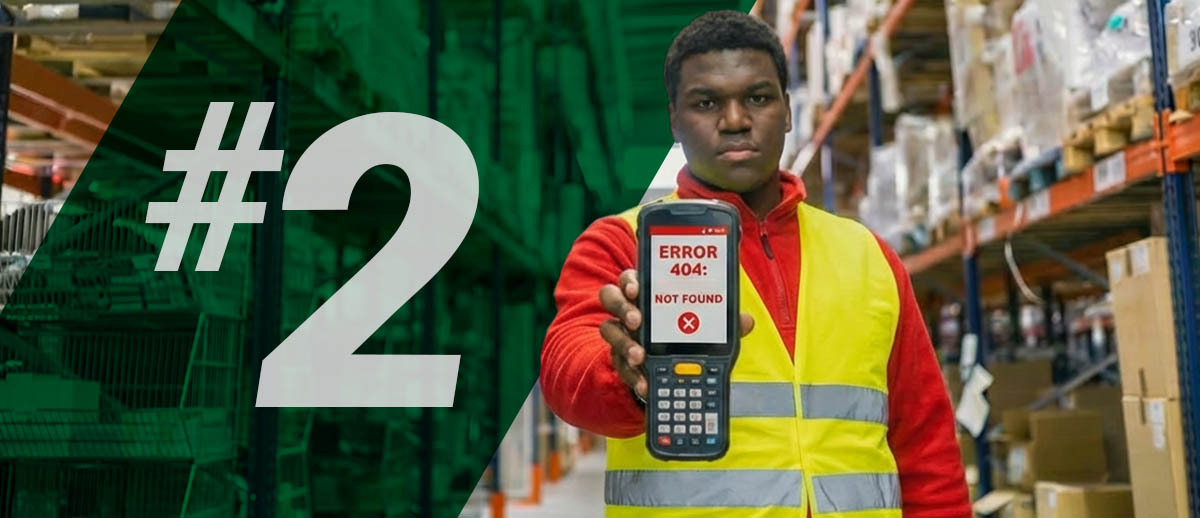
2. Bad Hardware / Scanner: The Reader's Limitations
The barcode scanner (or barcode reader) is the interpreter. If the hardware is inadequate or incorrectly configured, the best-printed label is useless.
- Symbology Mismatch: 1D vs. 2D Codes:
- Wrong Code Type: This is a very common oversight. A 1D (linear) scanner (which uses a line laser) cannot decode a 2D code (like a QR Code or Data Matrix). 2D codes require an area imager (or camera). Ensure your scanner type matches the label format used by your suppliers or internal systems.
Hardware Quality and Configuration: - Cheap Knock-Off Scanners: Low-cost scanners often have low-quality scan engines with poor optics and inadequate decoding algorithms, leading to unreliable reads and poor performance in challenging lighting or on slightly damaged codes.
- Damaged or Non-Rugged Hardware: Dropped scanners or mobile computers can sustain internal damage to the scan engine or laser module, leading to intermittent or complete failure.
- Incorrect Symbology Enabled: If the required barcode type (e.g., specific variations of Code 39 or Data Matrix) is disabled in the scanner’s configuration settings, it simply won't process the read.
- Distance Mismatch (Focus): A long-range scan engine is optimized for distance. If the operator is trying to scan too close to the label (within the scanner's Near Field), the code will be out of focus. Conversely, a standard-range scanner cannot read codes on high shelves.
- Multi-Code Picking: The scanner might be reading the correct label but also simultaneously picking up other different barcodes printed next to the code needing to be read. The scanner may be configured to read all codes, sending a confusing data stream to the application.
- Wedge/Mobile Computer Settings: Software like Zebra DataWedge on mobile computers manages how the scan engine data is injected into the application. If the scan engine settings aren't correctly enabled or are set to prepend/append extra characters, the application won't recognize the incoming data string.
- Wrong Code Type: This is a very common oversight. A 1D (linear) scanner (which uses a line laser) cannot decode a 2D code (like a QR Code or Data Matrix). 2D codes require an area imager (or camera). Ensure your scanner type matches the label format used by your suppliers or internal systems.
- Connectivity Issues:
- Lost Connectivity to Host: For wireless devices, a drop in Wi-Fi or cellular connection means the captured data cannot be transmitted to the host system. The scan appears to work on the device, but the record is never received by the inventory, retail, or patient system. For cabled scanners, a damaged cable or loose connection is a simple, yet overlooked, cause.

3. The Application and Software: The Data Interpreter
The final link is the host software (ERP, WMS, POS, EMR). This system must be ready, willing, and able to receive, parse, and process the exact data string sent by the scanner.
- Application is Not Ready for Input: The simplest issue: the cursor isn't in the correct input field. The operator must ensure the cursor is active in the designated "Scan" box before pulling the trigger.
- Incorrect Data Parsing or String Formatting: This is often the most frustrating issue.
- Parsing Error: Many complex barcodes (like GS1 standard codes) encode multiple data fields (Part Number, Expiration Date, Lot Number) into a single long string. The application must be programmed to correctly parse out the data based on identifiers. If the application expects a simple part number but receives a complex GS1 string, it will crash, truncate, or not be able to receive the string of data coming in.
- Data String Length Limit: The application might be designed to only accept a string of a certain maximum length. If a new, denser barcode exceeds this internal limit, the application will truncate the data or reject the input entirely.
- Parsing Error: Many complex barcodes (like GS1 standard codes) encode multiple data fields (Part Number, Expiration Date, Lot Number) into a single long string. The application must be programmed to correctly parse out the data based on identifiers. If the application expects a simple part number but receives a complex GS1 string, it will crash, truncate, or not be able to receive the string of data coming in.
- System/Database Issues:
- Data Not Yet in Database: The physical item is present, but the Part Master Record or corresponding SKU hasn't been created or activated in the system. The scanned number is valid, but the system doesn't recognize what it is, preventing any transaction.
- Transaction Blockage: The intended transaction (receiving, picking, selling) could be blocked by a system hold, pending approval, or an authorization/security issue preventing the operator from completing the process.
- Data Not Yet in Database: The physical item is present, but the Part Master Record or corresponding SKU hasn't been created or activated in the system. The scanned number is valid, but the system doesn't recognize what it is, preventing any transaction.
- Middleware/Integration Failures: If your scanning hardware relies on an intermediary software layer (middleware) to connect to your main system, that layer could be down, misconfigured, or running an outdated version, causing a silent failure in data transmission.
The Ultimate Objective Troubleshooting Plan
When your operation is stalled, implement this objective, step-by-step plan. Move past the blame game and methodically isolate the problem across the three key areas:
- Test the Label (Focus: The Code): Use an alternate, known-good label that you know scans successfully. Action: Attempt to scan the known-good label with the problematic scanner. Outcome: If the known-good label scans, the original, problematic label is the culprit (printing, damage, contrast). This isolates the issue to a batch of bad barcode labels.
- Test the Hardware (Focus: The Scanner): Take the problematic scanner and attempt to read the known-good label from Step 1. Action: If it fails, try the same known-good label with a different, known-good scanner. Outcome: If the known-good label fails on the problematic scanner but works on a different one, the scanner or its configuration is the issue. This isolates the problem to the barcode scanner or mobile computer settings.
- Test the Raw Data (Focus: The Data String): If the scanner is a mobile computer or a keyboard wedge, open a simple text editor (like Notepad or Wordpad). Action: Scan the problematic label. Outcome: Does the full, correct data string appear in the text editor? If so, the hardware successfully decoded the code, and the issue is further up the chain. This confirms if the raw data is being captured correctly by the hardware.
- Test the Application (Focus: The Transaction): If the data appears correctly in the text editor, go back to the application. Action: Can you manually type the exact data string into the input field and successfully complete the transaction? Outcome: If manual entry works, the issue is likely a conflict between the scanner's output settings (prefixes, suffixes, carriage returns) and the application's input requirements. If manual entry fails, the issue is definitively in the application's ability to process the data (database, parsing, or transaction blockage).
By methodically following this four-step sequence, you can pinpoint the actual source of the scanning failure and restore productivity across any part of your operation, from the retail counter to the largest warehouse.